


Sandbox Console

Test Webhook
You can use the Test Webhook URL feature to test the type of tracking data returned to the Destination URL (receiver/listener server). This helps to validate the URL and data returned prior to creating a Advanced Integrated Visibility webhook.
Navigation:
Following are the ways to navigate to Test Webhook URL Sandbox Console:
- My Projects (on the left Navigation Panel) -> Advanced Integrated Visibility tab -> Test webhook URL button->in Sandbox Console, click on Try this Advanced Integrated Visibility
- API Catalog (on the left Navigation Panel) -> search for Advanced Integrated Visibility/click on Advanced Integrated Visibility in FILTERS -> Advanced Integrated Visibility card:
- -> Overview -> Documentation button -> in Sandbox Console, click on Try this Advanced Integrated Visibility.
- -> Docs -> in Sandbox Console, click on Try this Advanced Integrated Visibility.
Steps:
Following are the steps to use Test Webhook URL functionality:
- Click on Test Webhook URL button.
- Enter the following Test parameters:
Field Name Description Destination URL
This is the URL to receive the Tracking event data/payload.
- Customer should provide a working and valid destination URL.
- Destination URL provided must be in the standardized syntactical format (secure https URL).
Security Token
Used as shared secret to authenticate and validate Advanced Integrated Visibility webhook response.
- Token value must be between minimum length of 26 characters and maximum of 100 characters.
- At least 1 uppercase, 1 lowercase and 1 numeric character are required.
- Security Token will be used to create Hash-based Message Authentication Code (HMAC) signature for response validation.
Payload language
Select the preferred language for tracking data translation from the drop-down list. Following are the available 6 sample languages:
- English (United States)(Default)
Tracking Type
Select type of response in which tracking data needs to be received.
- Detailed Tracking Response (Response type consists of secured tracking data with entire history of events).(Default)
- Event-Specific Tracking Response (Response type consists of secured tracking data with only the most recent event information).(Coming soon)
Tracking events
Select one higher-level category to receive email notifications related to shipment events in the package lifecycle. Following are the higher-level categories:
- Ship
- In Transit
- Delivery
- Exceptions
- Estimated Delivery
Status Event
A tracking event in the packages’ lifecycle. Select one of the tracking events to be received. Following are the available 10 sample status events:
- Picked up
- In transit
- Delivered
- Delivery Exception
Note: “Status Event” field values will be populated based on the selected "Tracking Event Category”. Refer the following table to learn more about the “Tracking Event Category” and their respective “Status Events”.
Status Event Category Status Event Ship
- Picked up
In-Transit
- In transit
Delivery
- Delivered
Exceptions
- Delivery Exception
Estimated Delivery(Coming Soon)
- Estimated Delivery Date (EDD)
- Estimated Delivery Time Window (EDTW)
- Check the FedEx Developer Portal License Agreement (FDPLA) box to Sign/Accept the License Agreement.
- Click the PUSH button to view test results.
Response :
Following are the response parameters in the Sandbox:
- Body – The body contains the response parameters in the Test Webhook URL tab within Sandbox Console.
- Status – This section in Test Results tab provides you the status of the request that is processed.
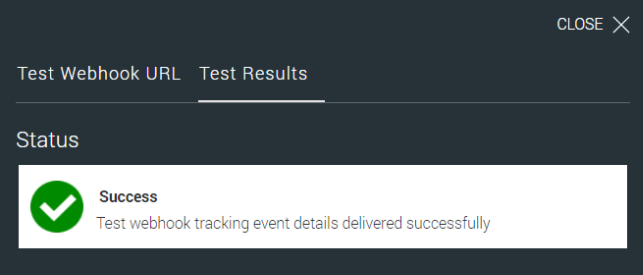
Sample Success Message:
Success
Test Advanced Integrated Visibility tracking event details delivered successfully.
Status

Success
Test webhook tracking event details delivered successfully

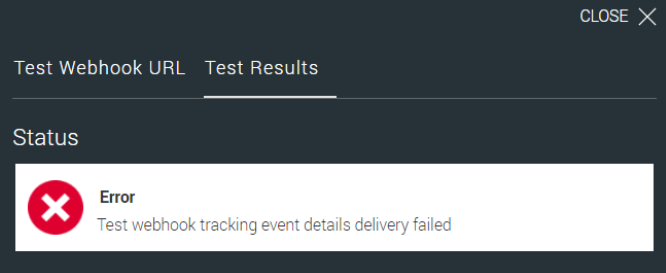
Error
Test webhook tracking event details delivery failed
If test event delivery fails, the STATUS will be displayed as Error in Test Results tab with respective error code and error message.
Sample Error Message:
Error Code:<<error code>>
Test Advanced Integrated Visibility tracking event details delivery failed.
Validation Rules:
- Advanced Integrated Visibility URL must be in Standardized Syntactical format.
- All the required fields for testing a Advanced Integrated Visibility URL must not be empty.
- For Successful Validation:
- FedEx will send a request with sample event JSON. Note: Advanced Integrated Visibility destination URL should respond with 200 (OK) as HTTP status code to FedEx.
- For Unsuccessful/Failed Validation:
- If FedEx receives any response other than 200 (OK), then the validation of the Advanced Integrated Visibility destination URL will be considered as failed.
- FedEx will display the error code and error message in Test Results tab
Data Payload Calculator
The Data Payload Calculator is designed to help subscribers estimate the volume of data generated through webhook activity. It provides visibility into daily payload sizes, shipment counts, and tracking events—helping users make informed decisions about data usage and integration planning.
Using the Calculator
Users can input the following parameters:
- Number of Shipments
- Events per Shipment (default: 5)
- Daily Payload Volume (auto-calculated)
Based on these inputs, the calculator dynamically displays:
- Total Tracking Events
- Daily Payload
- Estimated Total Data Size
Informational Notes:
- Events per Shipment is defaulted to 5. This is based on an average of 17–18 events per shipment and typical delivery timelines of 1–7 days, depending on service type, carrier, and destination. An average delivery time of 3 days is assumed. Note: This value is editable by the user.
- Daily Payload Volume is calculated as: Number of Shipments × Events per Shipment (default: 5)
- Users only need to enter the Number of Shipments and click “CALCULATE” to generate results. Other values are either defaulted or automatically calculated.
Disclaimer: All values provided by the calculator are approximations and intended for planning purposes only.
Number of Shipments
Events per Shipment (default 5)
Daily Payload Volume (events per day)
Note: Displayed values are approximations and may not reflect exact usage metrics.
